VPN Won't Connect? 9 Fixes That Actually Work
A practical, step-by-step troubleshooting guide — from switching servers and protocols to clearing DNS, fixing your clock, and a clean reinstall.

vpnrank.io is reader-supported: we may earn a commission if you buy through links in this article. This never affects our rankings.
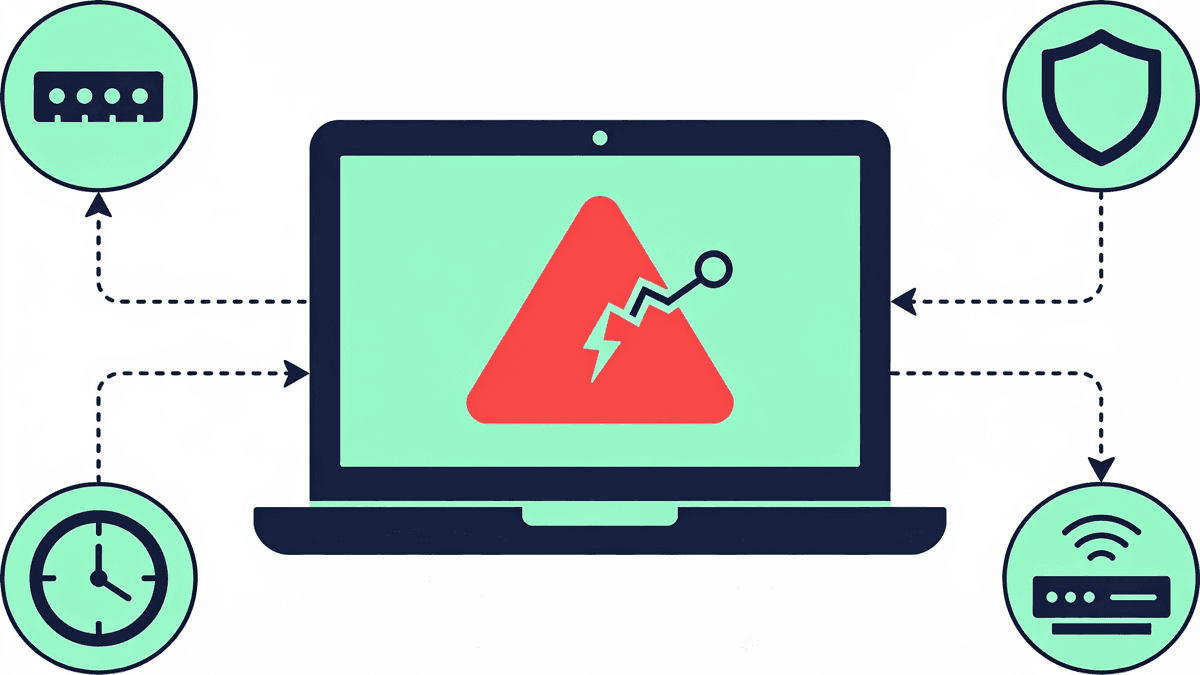
When a VPN won't connect, the cause is almost always one of a handful of ordinary problems: an overloaded server, a protocol your network is quietly blocking, a firewall, or a system clock that's out of sync. Work through the nine fixes below in order and most people are back online within a few minutes.
Start here: the 30-second reset
Before you change any settings, rule out the temporary glitches that cause a surprising share of failures. Network stacks, VPN clients, and routers all cache state that can go stale, and a clean restart clears most of it. This is the single highest-value step, so do it first even if it feels too simple to matter.
- 1Fully quit the VPN app — don't just disconnect. On Windows, close it from the system tray; on macOS, quit it from the menu bar.
- 2Toggle your internet off and on: disable Wi-Fi for ten seconds, then re-enable it, or unplug your router, wait ten seconds, and plug it back in.
- 3Reopen the VPN app and try connecting to your default server again.
- 4If you're on mobile, toggle Airplane Mode on and off to force the network to re-register.
Also confirm the obvious: is your internet working at all without the VPN? Open a website with the VPN off. If nothing loads, the problem is your connection, not the VPN — and no amount of VPN troubleshooting will help until that's fixed.
Fix 1: Switch to a different server
Individual VPN servers go down, get overloaded at peak hours, or fall out of rotation for maintenance. If your usual server is having a bad day, the app will report a connection failure that has nothing to do with your setup. Switching servers is the fastest test because it isolates the problem to one machine.
- Pick a server in a nearby city or the same country first — closer servers are lower-latency and more likely to connect cleanly.
- If a specific country keeps failing, try a second location in that country before assuming the whole region is blocked.
- Avoid servers flagged as "busy" or showing a high load percentage if your app displays one.
- Use the app's "Quickest" or "Optimal location" option, which routes you to the least-loaded server automatically.
If a fresh server connects instantly, you've found and solved the problem — the original server was the issue. It's also worth checking your provider's status page or social feed for a reported outage before you dig any deeper.
Fix 2: Change the VPN protocol
The protocol is the language your device and the VPN server use to talk. Networks — especially on university, office, and hotel Wi-Fi — sometimes block one protocol while allowing others. If your app is stuck on a protocol the network doesn't like, it will silently fail to handshake no matter which server you pick.
Head into your app's settings and look for a Protocol or Connection option. The usual choices, and when to reach for each:
- Automatic — let the app choose. Try this first; it often solves the problem on its own.
- WireGuard (sometimes branded NordLynx, Lightway, or similar) — modern, fast, and the best default in 2026.
- OpenVPN (UDP) — reliable and quick; a solid fallback when WireGuard is blocked.
- OpenVPN (TCP) — slower but stubborn; it retransmits lost packets and slips through more restrictive networks.
- IKEv2/IPsec — excellent on mobile because it reconnects smoothly when you switch between Wi-Fi and cellular.
Change one protocol at a time and retry the connection after each. If every protocol fails on one network but the VPN works elsewhere, the network itself is doing the blocking — which the next two fixes address.
Fix 3: Move to port 443 or turn on obfuscation
Firewalls block VPN traffic by watching the ports it uses. VPNs typically ride on UDP 1194 (OpenVPN), UDP 500 and 4500 (IKEv2), or a WireGuard port — all of which a restrictive network can shut down. The trick is to route your VPN through a port that can't be blocked without breaking the whole internet.
That port is TCP 443 — the same one every HTTPS website uses. When your VPN runs OpenVPN over TCP 443, its traffic looks like ordinary encrypted web browsing, so a firewall can't single it out. Two ways to get there:
- 1In your app's protocol settings, choose OpenVPN (TCP) — many clients default it to port 443 automatically, which is the fastest win on a locked-down network.
- 2Enable your provider's obfuscation, stealth, or camouflage mode. This wraps VPN traffic to disguise it further, defeating deep-packet inspection on networks that block VPNs by signature rather than by port.
Obfuscation is the heavier tool — it's what gets a VPN working on networks that actively hunt for and block VPN traffic. If a plain protocol switch didn't help, this usually does. This is also the setting that most often gets a VPN working from restrictive regions, so it's worth choosing a provider that includes it — something our VPN privacy guide weighs heavily when ranking apps.
Fix 4: Whitelist the VPN in your firewall and antivirus
Security software is a leading cause of silent VPN failures. Firewalls and antivirus suites inspect outbound connections, and an overzealous rule can quietly drop your VPN's traffic before it ever reaches the server. Because the block happens locally, the app just reports a generic timeout with no obvious cause.
- Temporarily disable your third-party firewall or antivirus, then try to connect. If it works, you've found the culprit — re-enable the software immediately and add an exception instead of leaving it off.
- Add your VPN app (and its background service or helper, if it has one) to the allowed-apps list in both your firewall and antivirus.
- On Windows, check Windows Defender Firewall's allowed apps list under Settings, and make sure both private and public network boxes are ticked for your VPN.
- Watch for overlap: two VPNs, or a VPN plus a separate proxy or security tool, can fight over the network adapter and block each other.
Never leave your firewall or antivirus switched off as a permanent fix — that trades a minor annoyance for a real security hole. Whitelisting gives you the connection back while keeping your protection intact.
Fix 5: Correct your system clock
This is the fix nobody expects and it's genuinely common. VPNs use TLS certificates to prove the server is legitimate, and certificate validity is time-based. If your device's clock is wrong — even by a few minutes in some cases, or by hours after a dead battery or timezone glitch — your device may decide the server's certificate is expired or not yet valid, and refuse to connect.
- On Windows: Settings → Time & language → Date & time → turn on "Set time automatically" and click "Sync now."
- On macOS: System Settings → General → Date & Time → enable "Set time and date automatically."
- On iPhone and Android: Settings → General/System → Date & Time → enable automatic/network-provided time.
- Double-check the timezone too — a correct clock in the wrong zone can still throw certificate errors.
After syncing to network time, close and reopen the VPN app so it starts a fresh handshake. If a certificate or TLS error was in your logs, this fix often clears it instantly.
Fix 6: Flush your DNS and reset the network stack
Your operating system caches DNS records and network configuration to speed things up, but a stale or corrupted cache can leave the VPN pointing at the wrong address or unable to resolve its server hostname. Flushing the cache and resetting the network stack clears that state without touching your VPN settings.
On Windows
Open Command Prompt as Administrator and run these commands one at a time, then restart your PC:
- ipconfig /flushdns — clears the DNS resolver cache
- netsh winsock reset — resets the network socket catalog
- netsh int ip reset — resets the TCP/IP stack
On macOS
Open Terminal and run: sudo dscacheutil -flushcache && sudo killall -HUP mDNSResponder. Enter your password when prompted, then relaunch the VPN. This clears the macOS DNS cache, which resolves a class of "connected but no internet" and hostname-resolution failures.
If your internet works but sites won't load only while the VPN is on, this is frequently the fix. It's also worth confirming the VPN isn't leaking DNS afterward, so your real location stays hidden — our VPN privacy guide walks through how to verify everything's routing correctly.
Fix 7: Update the app, then reinstall if needed
Outdated VPN clients cause more connection failures than almost any other single factor. Providers push frequent updates to keep pace with protocol changes and network blocks, and a client that's a few versions behind can simply stop handshaking. Start with an update; escalate to a clean reinstall only if that fails.
- 1Update the app from your provider's site or your device's app store, then retry.
- 2If it still won't connect, fully uninstall the VPN — on Windows, remove it via Settings → Apps, and let it delete its network driver (the TAP or WireGuard adapter) when prompted.
- 3Restart your device to clear any leftover network adapter state.
- 4Download the latest installer fresh from the provider and, on Windows, right-click and "Run as administrator" so it can install its driver cleanly.
- 5Sign in and connect.
A clean reinstall rebuilds the VPN's virtual network adapter from scratch. When you're seeing adapter errors — "no TAP adapters available" or a driver warning — this is the definitive fix, because those errors mean the adapter itself is broken or in use by another app.
Sometimes the app itself is the weak link — a client that reconnects reliably, ships frequent updates, and offers obfuscation and multiple protocols out of the box saves you most of this troubleshooting. See how the top providers compare in our best VPN rankings.
See our top-ranked VPNs →Fix 8: Try a different network
If you've worked through everything above and the VPN still won't connect, the fastest way to locate the problem is to change networks entirely. Some networks — corporate, campus, guest, and certain public Wi-Fi — block VPNs at the router level, and nothing you do on your device will override that.
- Switch from home or office Wi-Fi to your phone's mobile hotspot and try connecting.
- If the VPN connects instantly on the hotspot, your original network is the block — go back to Fix 3 (port 443 and obfuscation) to try to bypass it.
- If it fails on both networks, the problem is your device or account, not the network — revisit the reinstall and clock fixes.
- On networks you control, log into the router and check for VPN passthrough settings, which must be enabled for some protocols.
This test cleanly separates "the network is blocking me" from "my setup is broken," which tells you exactly where to spend your remaining effort. Running the VPN on your router is one way to sidestep flaky per-device networks entirely — see our guide to VPN routers.
Fix 9: Check your account, then contact support
If the app opens, servers are up, and your network isn't blocking anything, the issue may be your account or a bug on the provider's end. These are quick to rule out and worth checking before you spend more time on settings you've already verified.
- Confirm your subscription is active and hasn't lapsed or hit a payment failure.
- Make sure you haven't exceeded the simultaneous-device limit — the newest device to connect can knock an older one offline.
- Sign out and back in to refresh your authentication token.
- Check the provider's status page and support channels for a known outage.
Good providers offer 24/7 live chat, and their agents can see server-side logs you can't. Before you reach out, note your protocol, the server you tried, your operating system, and any error message — it turns a long back-and-forth into a two-minute fix. Choosing a provider with strong support is one reason our streaming VPN guide and overall rankings weight reliability so heavily.
Still stuck? A quick diagnostic order
If you've landed here mid-troubleshoot, run through the fixes in this priority order — it's roughly how a support technician would work, moving from the fastest, most common causes to the rarest. Each step narrows down where the problem lives.
- 1Restart the app, internet, and device (the 30-second reset).
- 2Switch to a different server.
- 3Change the protocol — try Automatic, then WireGuard, then OpenVPN TCP.
- 4Move to port 443 and enable obfuscation on restrictive networks.
- 5Whitelist the VPN in your firewall and antivirus.
- 6Correct your system clock and timezone.
- 7Flush DNS and reset the network stack.
- 8Update or cleanly reinstall the app.
- 9Test on a different network, then check your account and contact support.
Nine times out of ten the fix is in the first four steps. And if the whole reason you use a VPN is to keep watching your shows while you travel, our best streaming VPN guide and the best VPNs for Netflix pick up where this one leaves off.
Frequently asked questions
Why does my VPN connect but I still have no internet?
This is usually a DNS problem. Your VPN tunnel is up, but your device can't resolve website addresses through it. Flush your DNS cache (ipconfig /flushdns on Windows, or the dscacheutil command on macOS), then reconnect. Switching to a different server or changing your protocol also clears this in many cases.
Which VPN protocol should I use if mine won't connect?
Start with Automatic and let the app decide. If that fails, try WireGuard for speed, then OpenVPN (UDP), then OpenVPN (TCP) on port 443 — TCP is the most stubborn and hardest for firewalls to block. On mobile, IKEv2/IPsec reconnects most smoothly when you switch between Wi-Fi and cellular data.
Can a firewall or antivirus block my VPN?
Yes, and it's one of the most common causes of silent connection failures. Security software can drop VPN traffic before it leaves your device. Temporarily disable it to test; if the VPN connects, re-enable the software and add the VPN app to its allowed-apps list rather than leaving your protection off.
How does my computer's clock affect the VPN?
VPNs verify servers using time-based TLS certificates. If your system clock or timezone is wrong, your device may see a valid certificate as expired and refuse to connect. Enable automatic, network-synced time in your device settings, confirm the timezone is correct, then restart the VPN app to trigger a fresh handshake.
Will reinstalling my VPN app fix connection problems?
Often, yes — especially for adapter errors like "no TAP adapters available." A clean reinstall rebuilds the VPN's virtual network driver from scratch. Uninstall the app, restart your device, then install the latest version fresh (run the installer as administrator on Windows). Update first, though — an update alone frequently solves it.
My VPN works at home but not at work or school. Why?
Corporate, campus, and some public networks block VPNs at the router level. Test on your phone's mobile hotspot to confirm — if it connects there, the network is the block. To bypass it, switch to OpenVPN over TCP port 443 and turn on your provider's obfuscation or stealth mode, which disguises VPN traffic as normal HTTPS.
The best VPNs of 2026, ranked
Now you know how — here are the VPNs we recommend, independently tested and ranked for speed, streaming, privacy and value. Any of them works for everything in this guide.

ExpressVPN Ultra fast & secure. Great for privacy, downloads, and everyday browsing on all your devices. 24/7 live chat support.
ExpressVPN Ultra fast & secure. Great for privacy, downloads, and everyday browsing on all your devices. 24/7 live chat support.

IPVanish Fast speeds with unlimited device connections. Strong no-logs privacy and 24/7 live chat support. Great for families.

IPVanish Fast speeds with unlimited device connections. Strong no-logs privacy and 24/7 live chat support. Great for families.

NordVPN Excellent speeds with one of the largest server networks. Strong security features and easy-to-use apps. 24/7 live chat support.
NordVPN Excellent speeds with one of the largest server networks. Strong security features and easy-to-use apps. 24/7 live chat support.

Proton VPN Swiss-based VPN with strong privacy focus. Audited no-logs policy and open-source apps. Great for privacy-conscious users.
Proton VPN Swiss-based VPN with strong privacy focus. Audited no-logs policy and open-source apps. Great for privacy-conscious users.

CyberGhost Fast speeds and strong privacy tools. Simple apps, automatic WiFi protection, and 24/7 live chat support.
CyberGhost Fast speeds and strong privacy tools. Simple apps, automatic WiFi protection, and 24/7 live chat support.

TotalVPN Affordable VPN with strong privacy and reliable speeds. Easy-to-use apps for all major devices. No-logs policy.
TotalVPN Affordable VPN with strong privacy and reliable speeds. Easy-to-use apps for all major devices. No-logs policy.

Private Internet Access High-speed VPN with a large server network and advanced security settings. Ad blocker included and 24/7 live chat support.
Private Internet Access High-speed VPN with a large server network and advanced security settings. Ad blocker included and 24/7 live chat support.

Surfshark Unlimited device connections at a budget-friendly price. Includes ad blocker and strong privacy tools. Great value for money.
Surfshark Unlimited device connections at a budget-friendly price. Includes ad blocker and strong privacy tools. Great value for money.
Rankings are based on our independent testing methodology. We evaluate speed, privacy, security features, and value for money. We may earn affiliate commissions from links on this page, which helps fund our testing — this does not influence our rankings.