How to Set Up a VPN on Any Device: The Complete 2026 Walkthrough
Step-by-step setup for iPhone, Android, Windows, Mac, smart TVs, Fire Stick, routers and games consoles — plus how to confirm it's actually working.

vpnrank.io is reader-supported: we may earn a commission if you buy through links in this article. This never affects our rankings.
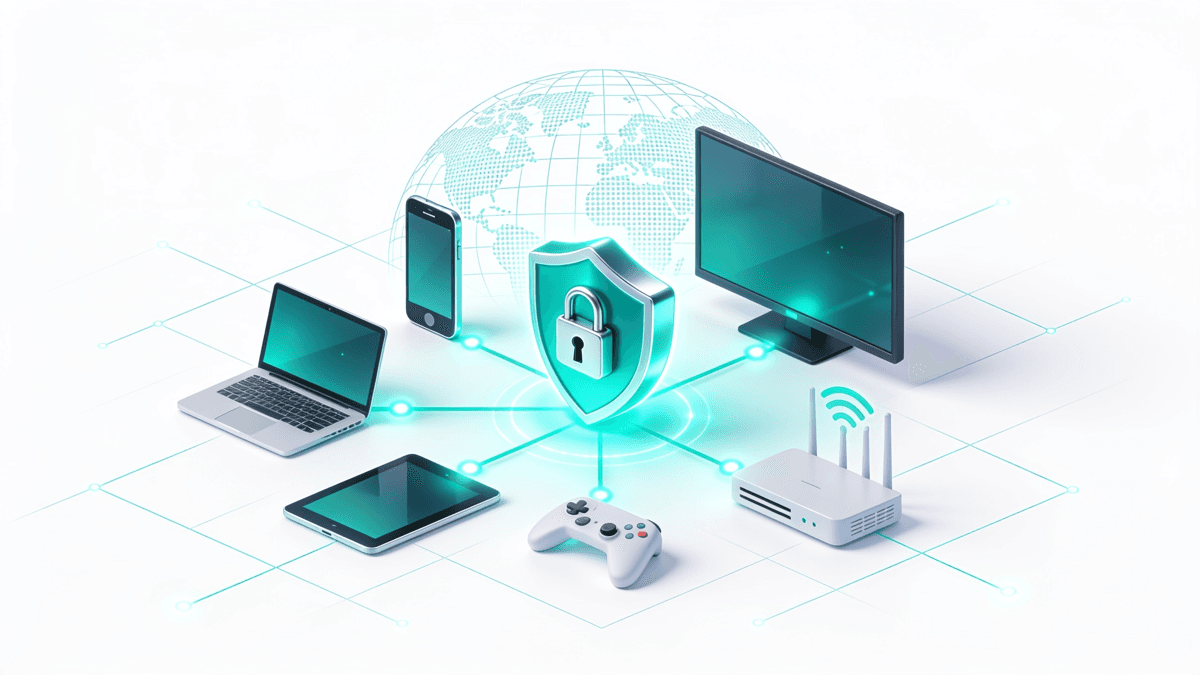
Setting up a VPN is far simpler than most people expect. On a phone or laptop it's a three-minute job: install an app, sign in, tap connect. The only devices that need a little more thought are the ones without an app store — smart TVs, games consoles and the like — and even those have a reliable workaround. This guide walks through every device, in plain English, with the exact steps.
Throughout, we use a top-tier VPN as the example because the apps are near-identical across providers — once you've done it on one device, the rest feel familiar. If you don't have a VPN yet, any of our top-ranked providers work the same way; the steps below apply to all of them.
Before you start: what you need
You only need two things to set up a VPN on your main devices:
- An active VPN subscription. You'll create an account and choose a plan — the long-term plans are far cheaper per month (see the current prices in our VPN Price Index).
- The device you want to protect, connected to the internet.
That's it. There's no networking knowledge required for phones, computers, Fire Sticks or Android TVs — only the router method below involves anything more technical, and we keep it simple.
Which setup method is right for your device?
There are only three ways to get a VPN onto a device, and which one you use comes down to a single question: can the device run apps? Pick the method that matches and skip the rest — most people only ever need the first one.
- Install the app (easiest): phones, tablets, computers, Fire TV Sticks and Android/Google TVs. A two-to-three-minute job that gives you full control over the server location and settings.
- Set it up on your router: the option for anything that can't run an app — Samsung and LG TVs, games consoles, smart-home devices — and the fastest way to protect every device in your home at once.
- Use Smart DNS: a lightweight route for unblocking region-locked apps on a TV or console when you don't need full encryption and want to keep speeds as high as possible.
The rest of this guide covers each method in turn. Start with the app for your main devices; only reach for the router or Smart DNS for the gadgets that genuinely need them.
How to set up a VPN on iPhone & iPad (iOS / iPadOS)
Setting up a VPN on an iPhone or iPad takes about two minutes and uses the official App Store app — there are no configuration profiles to install by hand. iOS treats the VPN as a system-level connection, so once it's switched on it protects Safari and every app on the device, not just your browser.
- 1Open the App Store and search for your VPN provider's app (for example, "ExpressVPN" or "NordVPN"). Tap Get to install it.
- 2Open the app and sign in with the account you created when you subscribed.
- 3The first time you connect, iOS asks permission to add a VPN configuration — tap Allow and confirm with Face ID, Touch ID or your passcode.
- 4Tap the big Connect button. To pick a country, tap the location selector first, then connect.
- 5A small VPN badge appears in your status bar — you're protected.
For provider-by-provider picks and iOS-specific notes, see our guide to the best VPNs for iPhone.
How to set up a VPN on Android
Android setup is just as quick and follows the same pattern: install the app from the Play Store, sign in, and connect. Android then routes every app through the encrypted tunnel. If you want the VPN to reconnect automatically after a reboot, enable "always-on VPN" in Android's network settings once you've finished.
- 1Open the Google Play Store, search for your provider's app and tap Install.
- 2Open the app and sign in.
- 3Tap Connect. Android will ask permission to set up a VPN connection the first time — tap OK.
- 4Choose a server location from the list if you want a specific country; otherwise the app picks the fastest one for you.
- 5A key icon in the status bar confirms the VPN is active.
More on phone-specific features (split tunnelling, always-on VPN) in our best VPNs for Android guide.
How to set up a VPN on Windows
On Windows you download the app directly from your provider (or the Microsoft Store), install it, and sign in. The desktop apps expose the most settings of any platform — this is where you'll want to switch on the kill switch and auto-connect so the VPN starts with your PC and never leaves you briefly exposed.
- 1Download the Windows app from your provider's website (or the Microsoft Store) and run the installer.
- 2Launch the app and sign in.
- 3Click Connect for the fastest server, or open the location list to choose a country.
- 4Optional but recommended: in Settings, turn on the kill switch so your connection is blocked if the VPN ever drops, and enable launch on startup.
See the best VPNs for Windows for app-quality comparisons.
How to set up a VPN on Mac
Mac setup mirrors Windows. You can install from the Mac App Store, but the version downloaded from the provider's site usually includes more features (split tunnelling, a wider protocol choice). macOS will ask once for permission to add a VPN configuration — approve it and you're set for good.
- 1Download the macOS app from your provider (App Store versions exist but the website version often has more features).
- 2Open it, sign in, and grant the VPN configuration permission macOS requests on first connect.
- 3Click Connect, or choose a location first.
- 4Enable the kill switch and launch-at-login in Settings for set-and-forget protection.
Provider picks: best VPNs for Mac.
How to set up a VPN on a smart TV
How you install a VPN on a TV depends on the operating system:
- Android TV / Google TV (Sony, Philips, TCL, Hisense, Nvidia Shield): there's a native app. Open the Play Store on the TV, search for your provider, install, sign in and connect — exactly like on a phone. See best VPNs for Android TV.
- Samsung Tizen, LG webOS and most other smart TVs: these don't support VPN apps. Use the router method (below) or your provider's Smart DNS feature, which routes the TV's traffic without an app.
If your TV can't run an app, setting the VPN up on your router covers it automatically — that's the most reliable route for living-room devices.
How to set up a VPN on an Amazon Fire TV Stick
The Fire TV Stick runs a version of Android, so most top VPNs have a dedicated app right in the Amazon Appstore — no sideloading needed. The only mild annoyance is typing your password with the remote, which a sign-in code or the provider's companion app solves in seconds.
- 1From the Fire TV home screen, search (the magnifying-glass icon) for your VPN provider by name.
- 2Select the app and choose Download / Get.
- 3Open it, sign in (a phone-friendly login code makes this easier than typing with the remote), and connect.
- 4Pin the app to your home row so it's easy to launch before you start streaming.
Full picks and remote-friendly tips: best VPNs for Fire TV Stick.
How to set up a VPN on a router (covers every device)
Installing the VPN on your router protects every device on your network at once — including those that can't run a VPN app, like a Samsung TV, a games console or a smart-home gadget. It counts as a single connection no matter how many devices are behind it.
- 1Check your router supports VPN client mode (many do; some providers also sell pre-configured routers). Flashed firmware like AsusWRT, DD-WRT or Tomato adds support to more models.
- 2Log in to your router's admin page (usually 192.168.0.1 or 192.168.1.1) in a browser.
- 3Find the VPN client section and enter the configuration your provider gives you (a WireGuard/OpenVPN config file or manual details).
- 4Save, connect, and confirm the router shows the VPN as connected. Every device on that Wi-Fi is now protected.
Routers vary a lot, so follow your provider's model-specific guide. Our best VPNs for routers page lists the providers with the clearest setup tools.
How to set up a VPN on PlayStation & Xbox
Games consoles don't run VPN apps, so you have two options:
- Router method (best): set the VPN up on your router as above, and the console is covered automatically.
- Smart DNS: enter your provider's Smart DNS addresses in the console's network settings — ideal for unblocking region-locked apps without affecting ping as much.
For lag-sensitive play, connect to a nearby server and prefer the WireGuard-family protocol. See best VPNs for gaming.
One subscription covers every device
You don't need a separate plan for each device. Every VPN allows several simultaneous connections, and many of the providers in our rankings allow unlimited devices — you simply sign in with the same account everywhere. A VPN installed on your router counts as a single connection no matter how many devices sit behind it, which makes the router method the most economical way to cover a busy household. If you keep hitting a connection limit, check our guide to the best VPNs for multiple devices, several of which place no cap at all, so a phone, laptop, TV and console can all stay connected at once.
How to check your VPN is actually working
Once connected, take 30 seconds to confirm it's doing its job:
- 1Search "what is my IP" in a browser — it should show the city/country of the server you connected to, not your real location.
- 2Run a free DNS leak test and a WebRTC leak test — every result should show the VPN server, not your ISP.
- 3If anything shows your real location, switch on the kill switch, reconnect, and re-test. Our DNS leak and WebRTC leak explainers cover what these mean.
Common setup problems and quick fixes
Most setup hiccups come down to one of four things, and each has a 10-second fix. Work through these before assuming anything is broken — in our testing, switching server or protocol resolves the vast majority of issues.
- Can't connect: switch to a different server, or change protocol (WireGuard → OpenVPN) in settings.
- Slow speeds: pick a server geographically closer to you and make sure you're on a WireGuard-family protocol.
- A streaming app won't unblock: switch to another server in the same country and clear the app's cache. Our Can I Watch? finder shows the right server per service.
- Some sites break: use split tunnelling to route only the apps you want through the VPN.
Don't have a VPN yet? Our top pick installs in three minutes on every device above.
See our top-ranked VPNs →Three settings worth turning on after setup
Once you're connected, three optional settings turn a working VPN into a set-and-forget one. They take under a minute to enable and are the difference between protection you have to remember and protection that's simply always there.
- Kill switch: blocks all internet traffic if the VPN connection ever drops, so your real IP can't leak during the gap. Leave it on — there's no downside for everyday use.
- Auto-connect / always-on: starts the VPN with the device (and on untrusted Wi-Fi), so you never browse unprotected because you forgot to tap connect.
- Preferred protocol: set it to the WireGuard-family option (NordLynx, Lightway, WireGuard) for the best balance of speed and security; switch to OpenVPN only if a network blocks the faster one.
On a phone, you'll also want to allow the VPN to run in the background; on a laptop, enable launch-at-login. With those in place the VPN essentially disappears — it's just on whenever you're online.
The bottom line
On phones and computers, VPN setup is a three-tap routine: install the app, sign in, connect. For TVs and consoles, the router method protects everything in one go, and Smart DNS covers the apps that only need a region change. Whichever device you start with, the pattern is the same — install, connect to the right country, and run a quick leak test to confirm it's working. From there, one subscription and one login cover every device you own, and the optional settings above keep the protection running without you having to think about it. If you're choosing a provider, the ranked comparison below is where to start.
Frequently asked questions
How long does it take to set up a VPN?
On a phone or computer, about three minutes: install the app, sign in, and tap connect. Routers take a little longer because you enter the configuration manually, but it's a one-time job that then covers every device on your network.
Can I use one VPN subscription on all my devices?
Yes. Every plan covers multiple simultaneous connections, and several providers allow unlimited devices. You sign in with the same account on each device. Installing the VPN on your router counts as a single connection but protects everything behind it.
Do I need any technical knowledge to set up a VPN?
No — phones, computers, Fire Sticks and Android TVs use a simple app: install, sign in, connect. Only the router method involves entering settings manually, and providers give step-by-step instructions for each router model.
How do I know my VPN is working?
Search "what is my IP" — it should show the VPN server's location, not yours — and run a DNS leak test and a WebRTC leak test, which should both show the VPN server. If your real location appears, enable the kill switch, reconnect and re-test.
How do I set up a VPN on a TV that has no app store?
Samsung (Tizen) and LG (webOS) TVs can't run VPN apps. Set the VPN up on your router so the TV is protected automatically, or use your provider's Smart DNS feature to route the TV's streaming traffic without an app.
The best VPNs of 2026, ranked
Now you know how — here are the VPNs we recommend, independently tested and ranked for speed, streaming, privacy and value. Any of them works for everything in this guide.

ExpressVPN Ultra fast & secure. Great for privacy, downloads, and everyday browsing on all your devices. 24/7 live chat support.
ExpressVPN Ultra fast & secure. Great for privacy, downloads, and everyday browsing on all your devices. 24/7 live chat support.

IPVanish Fast speeds with unlimited device connections. Strong no-logs privacy and 24/7 live chat support. Great for families.

IPVanish Fast speeds with unlimited device connections. Strong no-logs privacy and 24/7 live chat support. Great for families.

NordVPN Excellent speeds with one of the largest server networks. Strong security features and easy-to-use apps. 24/7 live chat support.
NordVPN Excellent speeds with one of the largest server networks. Strong security features and easy-to-use apps. 24/7 live chat support.
Proton VPN Swiss-based VPN with strong privacy focus. Audited no-logs policy and open-source apps. Great for privacy-conscious users.
Proton VPN Swiss-based VPN with strong privacy focus. Audited no-logs policy and open-source apps. Great for privacy-conscious users.

CyberGhost Fast speeds and strong privacy tools. Simple apps, automatic WiFi protection, and 24/7 live chat support.
CyberGhost Fast speeds and strong privacy tools. Simple apps, automatic WiFi protection, and 24/7 live chat support.

TotalVPN Affordable VPN with strong privacy and reliable speeds. Easy-to-use apps for all major devices. No-logs policy.
TotalVPN Affordable VPN with strong privacy and reliable speeds. Easy-to-use apps for all major devices. No-logs policy.

Private Internet Access High-speed VPN with a large server network and advanced security settings. Ad blocker included and 24/7 live chat support.
Private Internet Access High-speed VPN with a large server network and advanced security settings. Ad blocker included and 24/7 live chat support.

Surfshark Unlimited device connections at a budget-friendly price. Includes ad blocker and strong privacy tools. Great value for money.
Surfshark Unlimited device connections at a budget-friendly price. Includes ad blocker and strong privacy tools. Great value for money.
Rankings are based on our independent testing methodology. We evaluate speed, privacy, security features, and value for money. We may earn affiliate commissions from links on this page, which helps fund our testing — this does not influence our rankings.